Adding/Removing Users
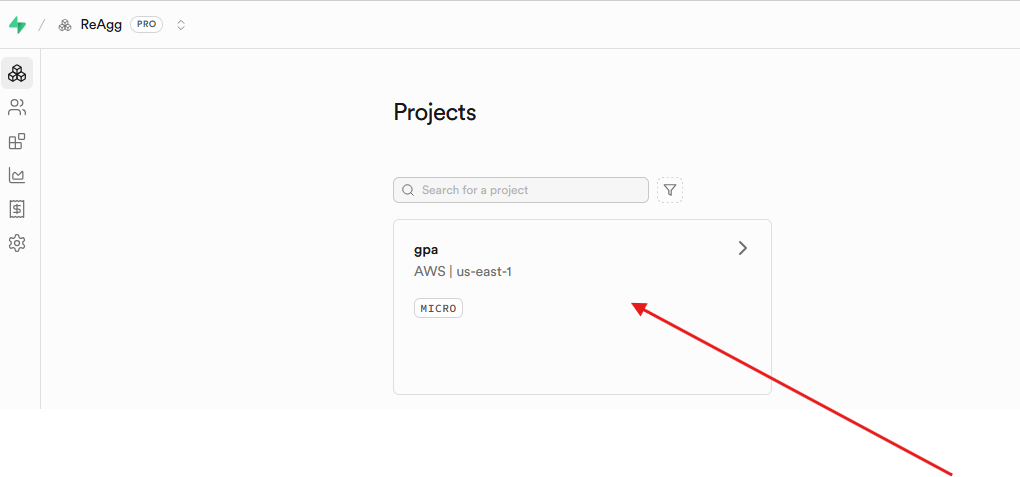
To add a new user, login to Supabase and click on GPA.
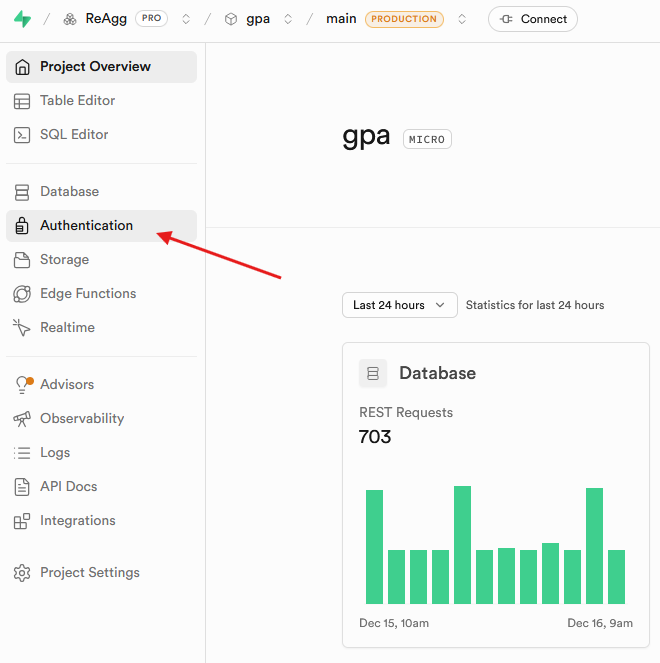
 Go to the left hand menu and select authentication:
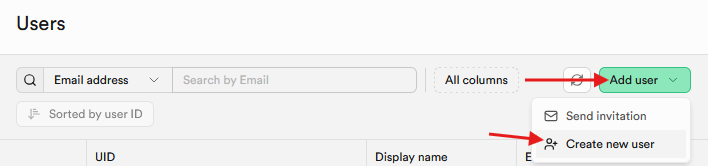
Click on add user and then create new user:
Type in the email address and the password for the new user and make sure the auto confirm checkbox is selected:
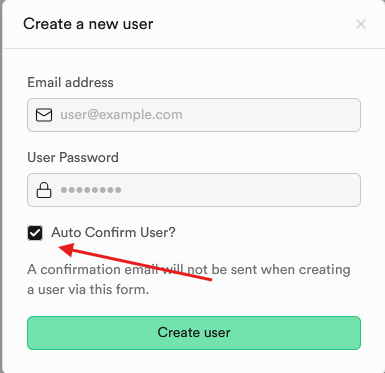
Once that is done, the user will be able to log into GPA, but will fail to load any information as they do not have any permissions. To give them permissions you must go to the users table and add a new entry.
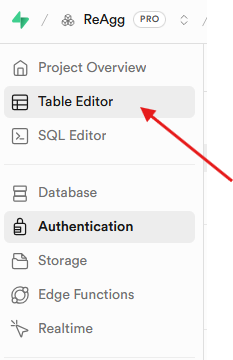
On the left hand menu select table editor:
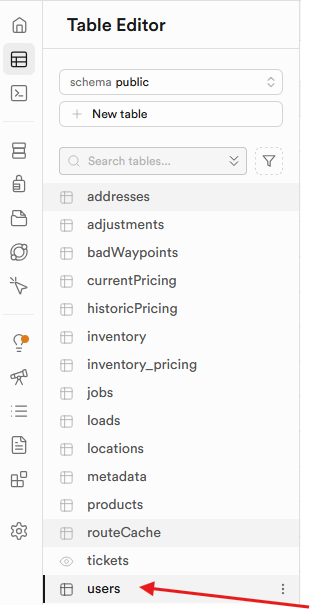
Click on the users table:
Click on insert then insert row:

Fill out the information in the form:
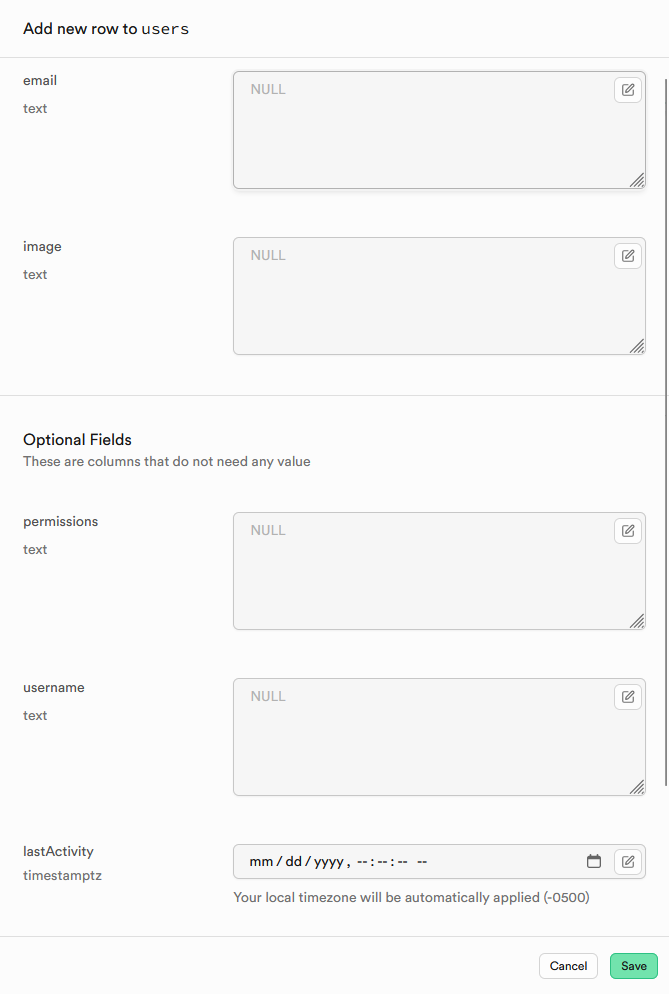
- Email - it should match what you used in the previous step.
- Image - Placeholder, simply type in “default.jpg”
- Permissions - The level of access the user will have
- Username - Can be anything, I usually just use the users first name
- Last Activity - Leave blank
- Interact Code - if the user is a salesperson, this is the abbreviation used in interact to identify their jobs.
Once everything is filled out, you can press save, and the user should now be able to use the GPA.
Removing users
The easiest way to remove access is to delete the users entry in the users table, or to change their permission field to “none”.
However, to completely remove their ability to log in, you must do so from the authentication menu.
Click on authentication:
Find and click the user you wish to remove and click on it from the list.
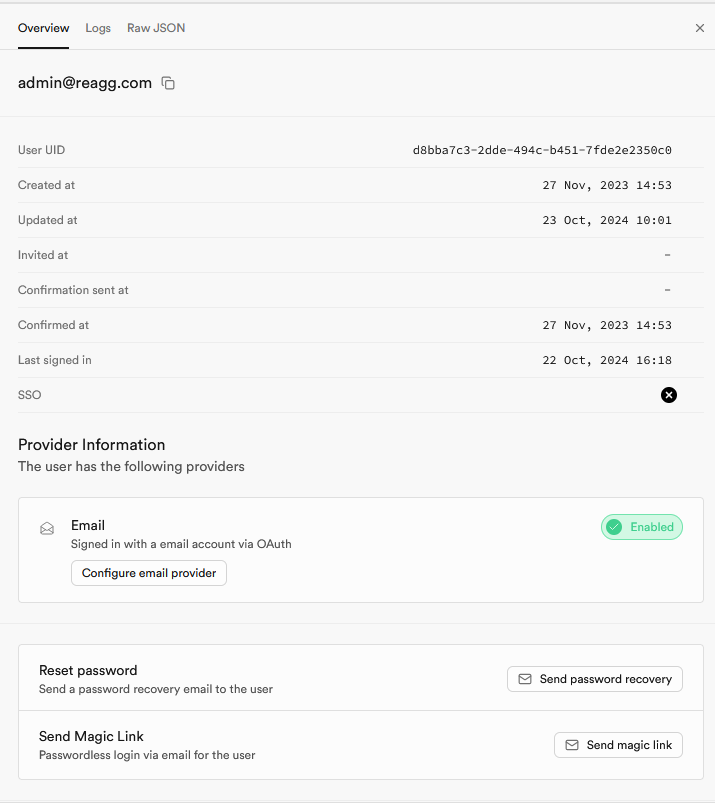
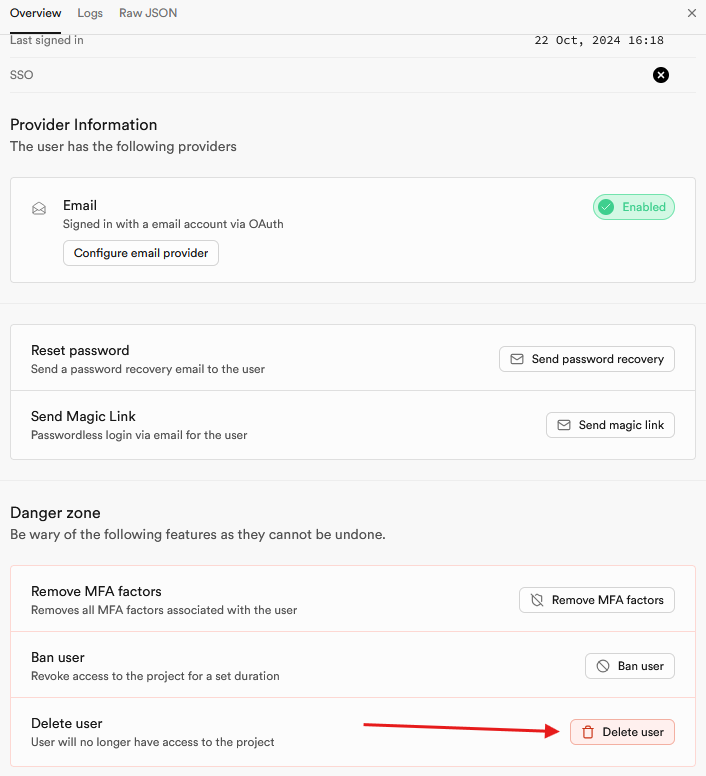
Scroll down and click on delete user:
QuickBooks Adjustments
To add QuickBooks adjustments they must be added to the “adjustments” table.
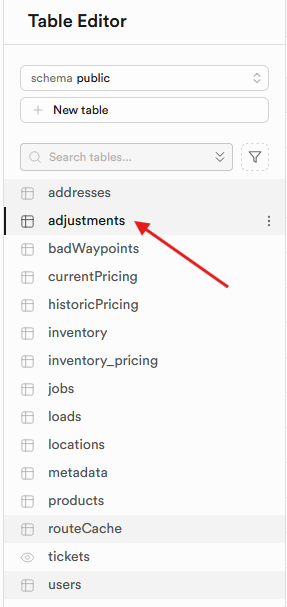
On the left hand side, click on the table editor, and then the adjustments table:
From here you can enter adjustments via the insert button. You can either insert a row, or import from a CSV.
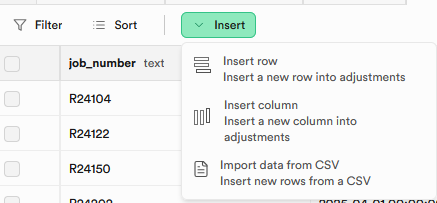
Inserting from a row will require inputting every row and all information manually. It is a fine option for one or two entries but will be very time consuming for large imports.
To import via CSV simply make sure that the CSV has matching column titles and data types in said columns and it should import without problem. If a template for said CSV is needed, you can download the current adjustments table, and see how it is formatted.
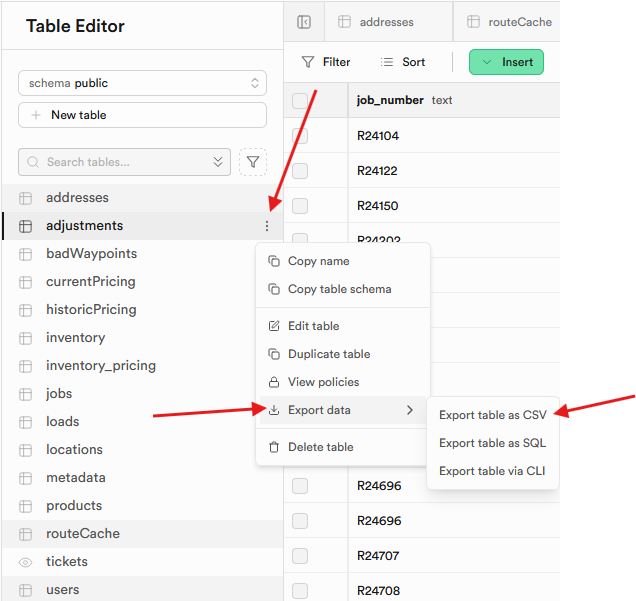
To download the table click on the three dots on the table → export data → export data as CSV:
Quoter Locations
The quoter automatically pulls all pricing from the latest vendor pricing. From that pricing, it looks at the location code and cross references with available locations in Supabase.
In order to add/edit locations to Supabase go to the table editor and open the “addresses” table:
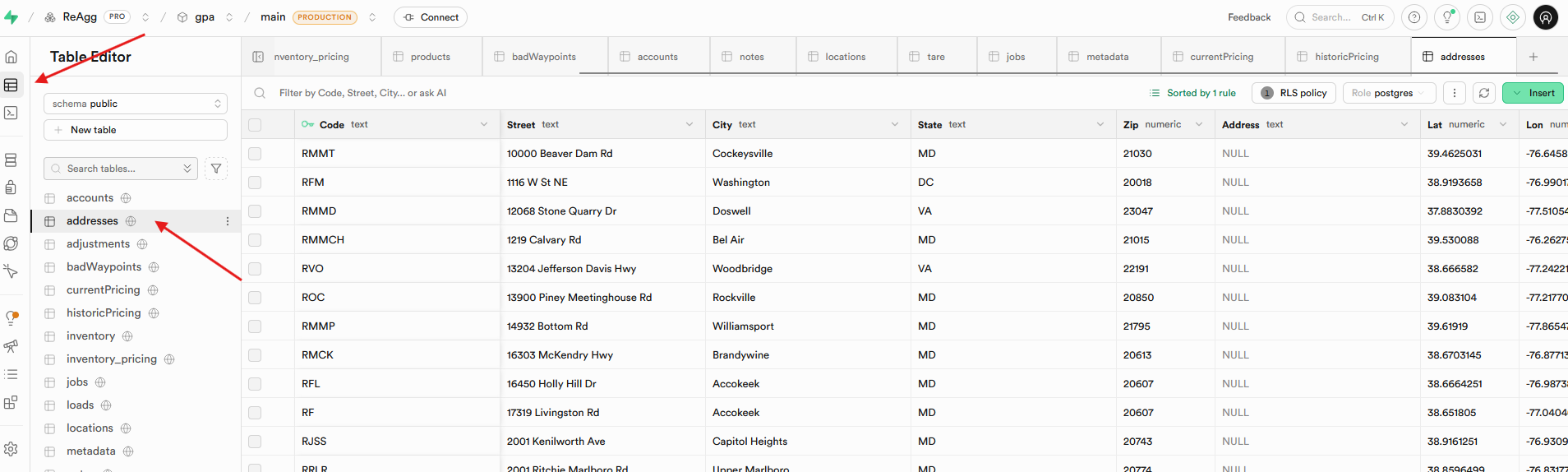
From here you can see the list of locations and add/edit them as you wish. When creating an item make sure that you match the Interact code exactly.
Warning
The most important information is the code, latitude, and longitude. Failing to include it may lead to errors or incorrect calculations!
You can use any website that translates addresses to latitude longitude. Here are some examples:
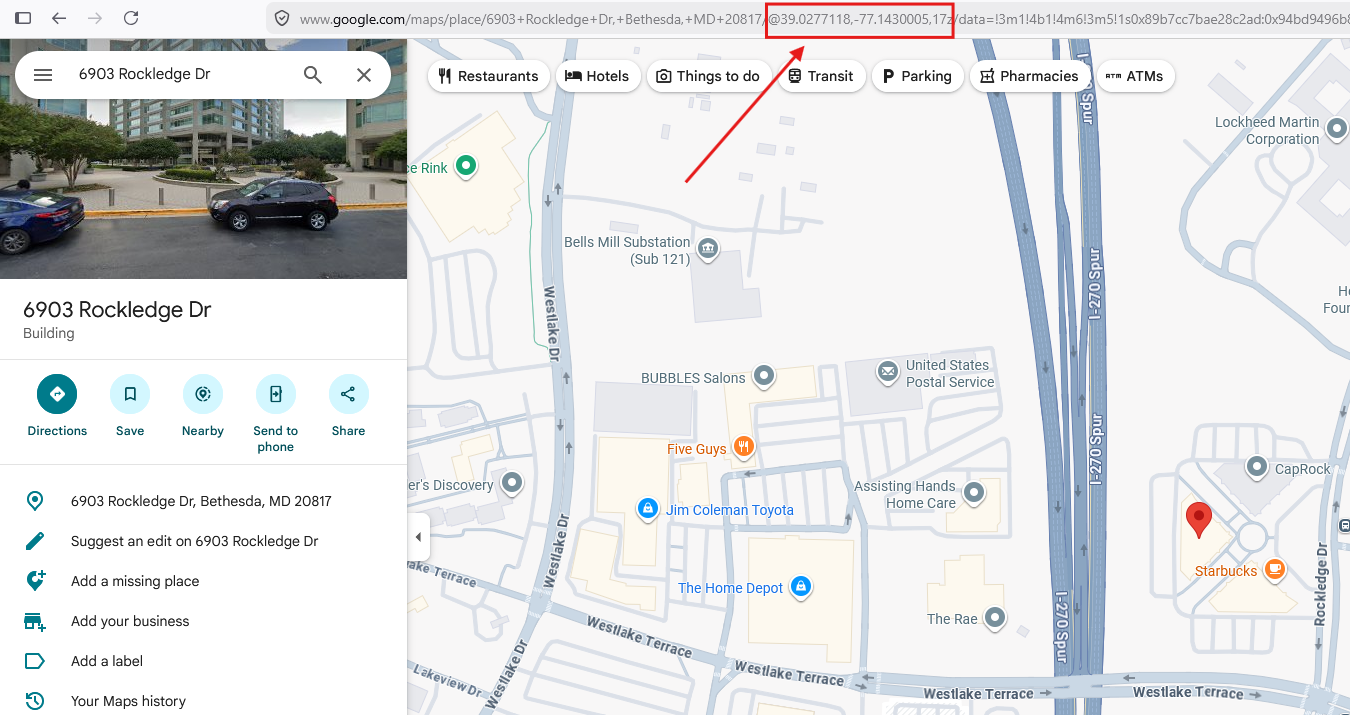
Google maps also shows this information, albeit it is hard to find. It is in the URL after you search: